 Contexara
 From zero to a memory that follows you
Every step, start to finish, using Claude in your browser. About five minutes, and nothing to install.
Before you start
You need a Contexara account and a Claude account. That's it, no terminal, no installs, no config files.
On Claude Code instead? The connector works the same way, see the MCP guide for the terminal command.
1. Create your account
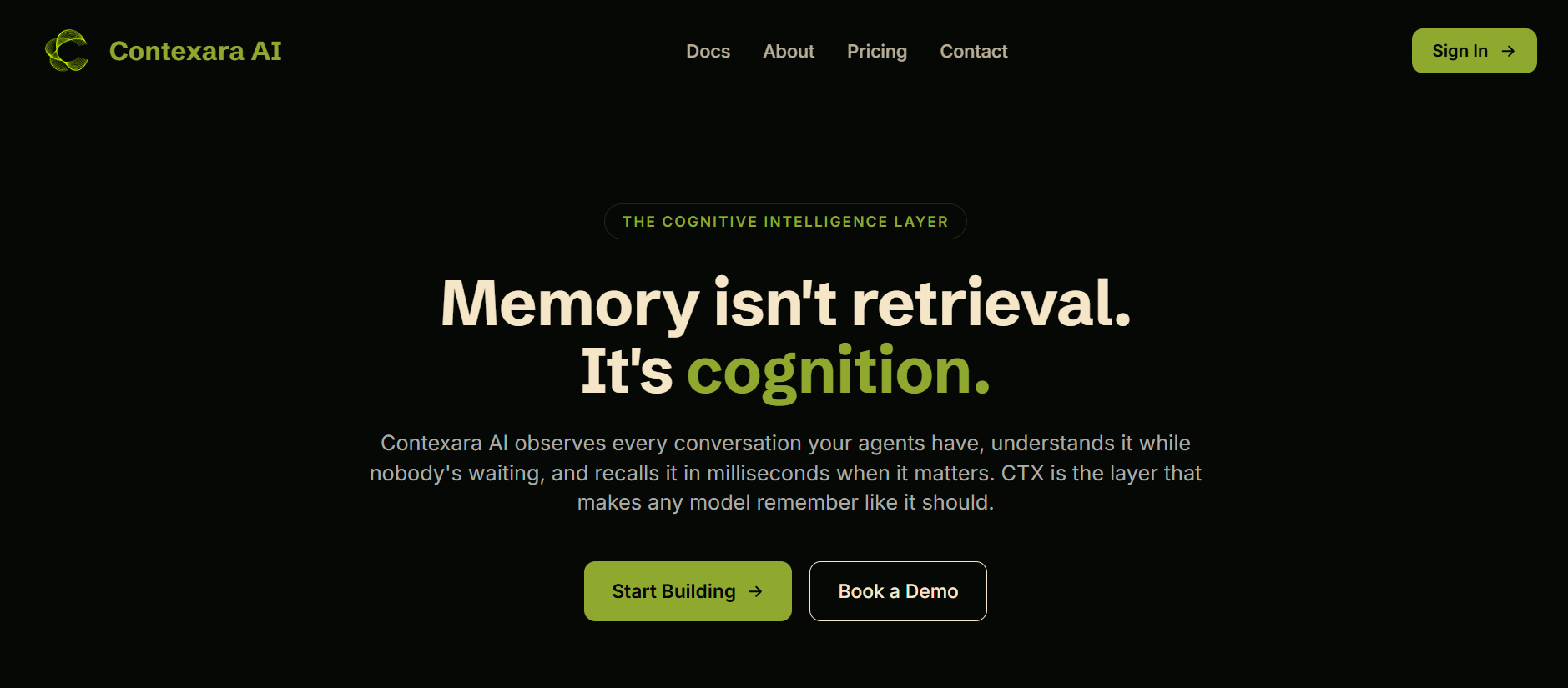
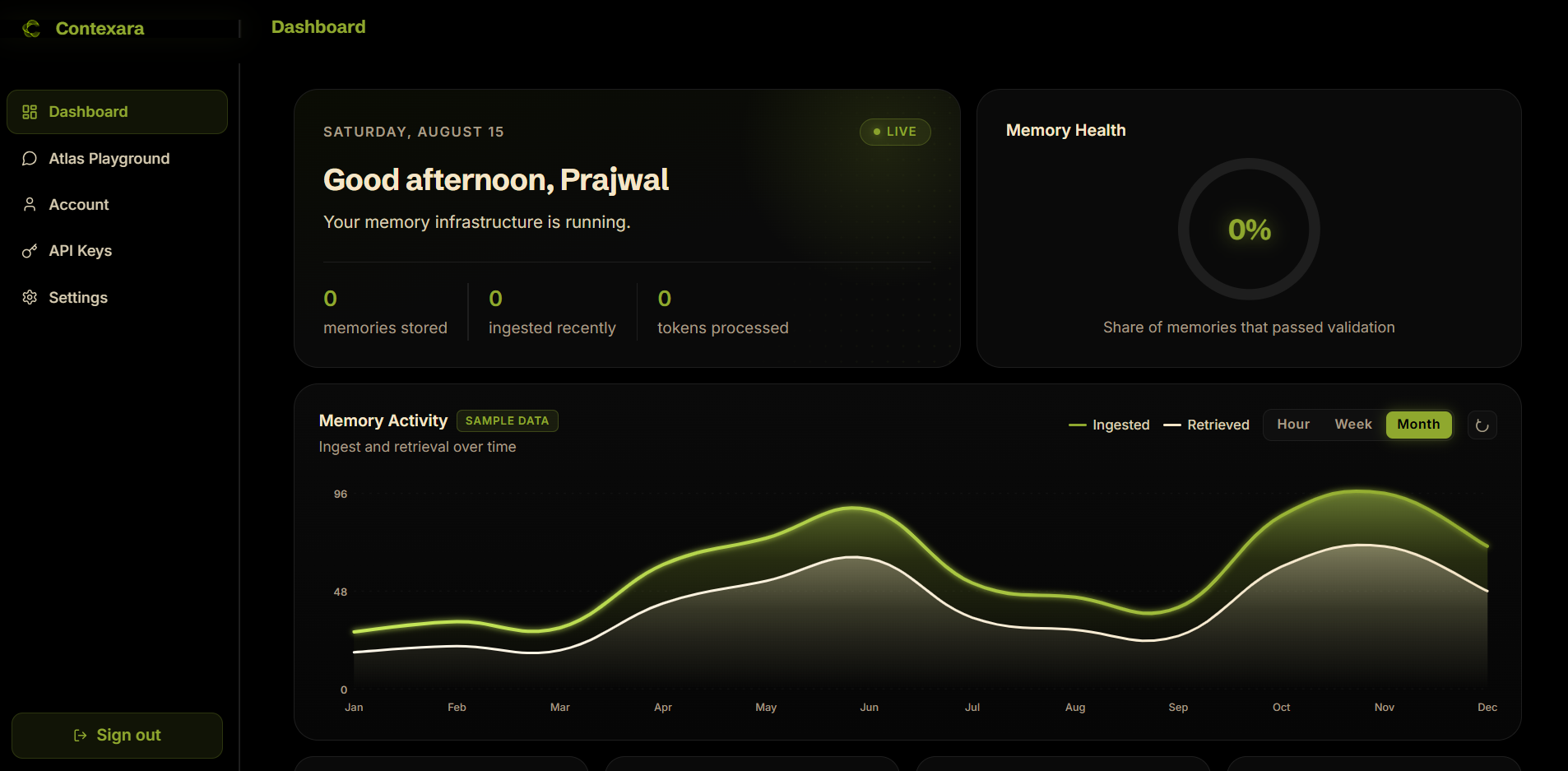
Sign up at contexara.com/signup. You'll land on your dashboard, empty for now, that's expected.
2. Generate an API key
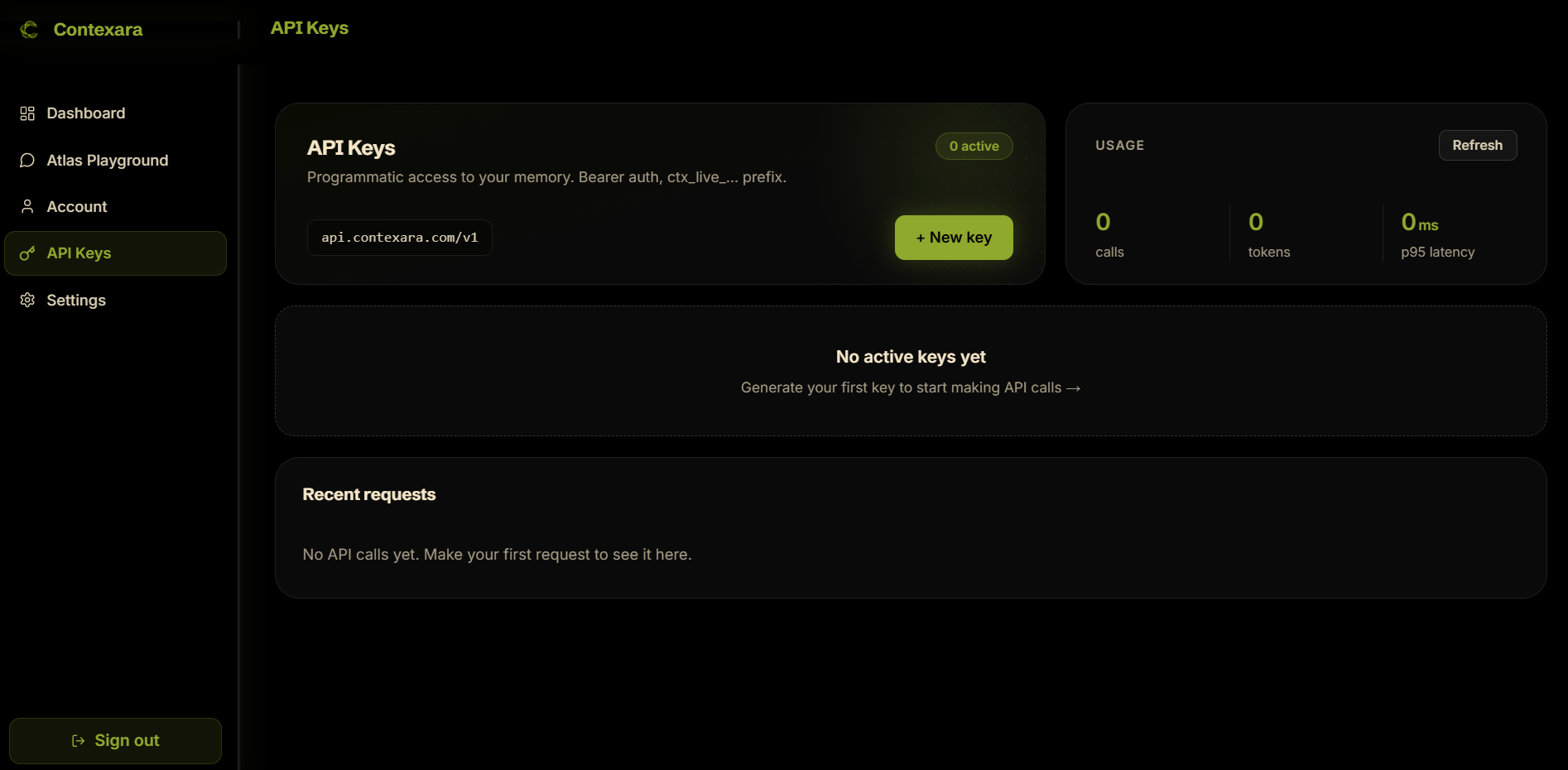
Go to the Keys page and create one. It starts with ctx_live_.
3. Add the connector
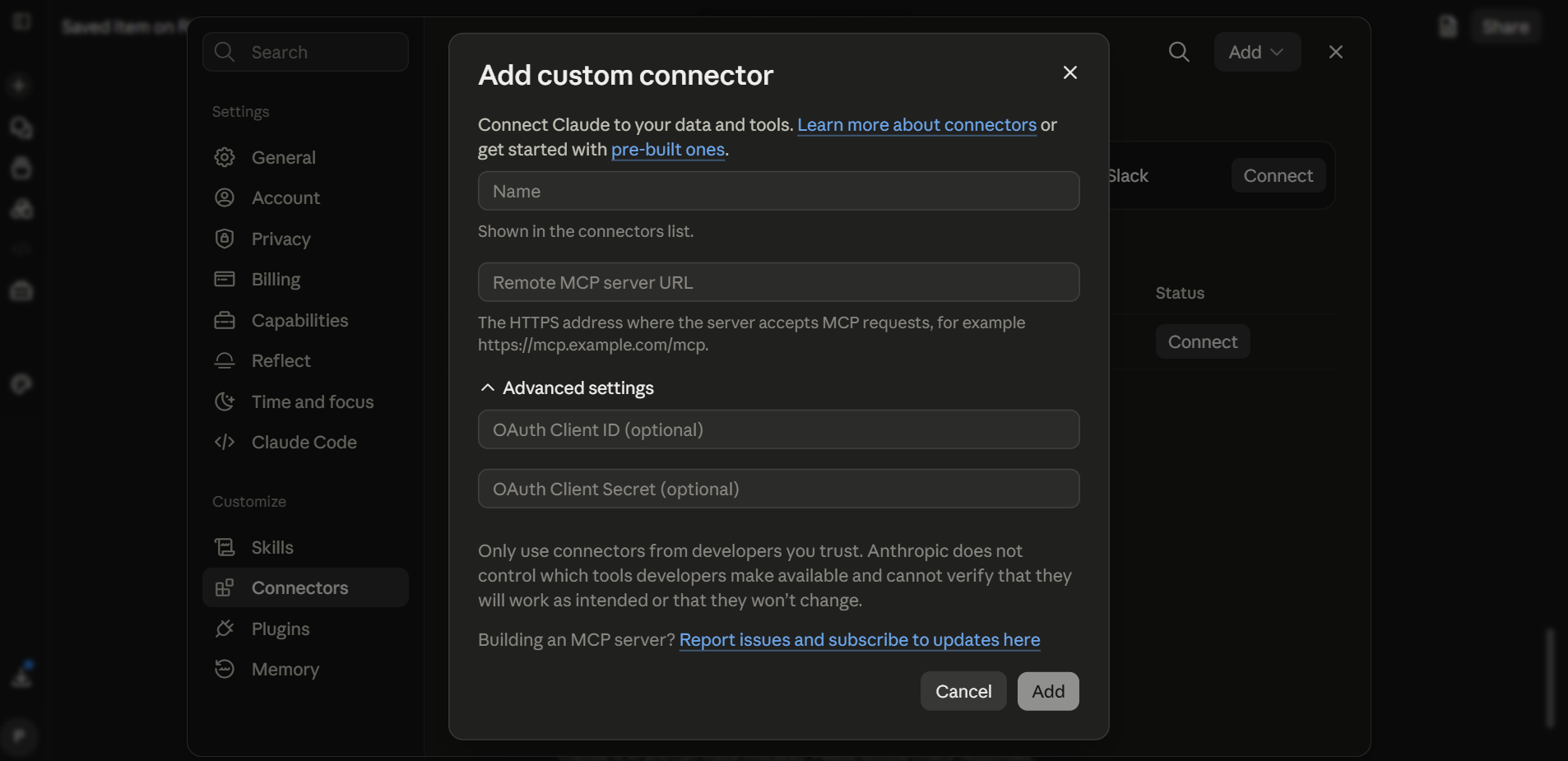
In Claude, open Settings → Connectors and choose Add custom connector.
Call it Contexara, then use https://mcp.contexara.com/mcp as the server URL. Leave the advanced OAuth fields empty
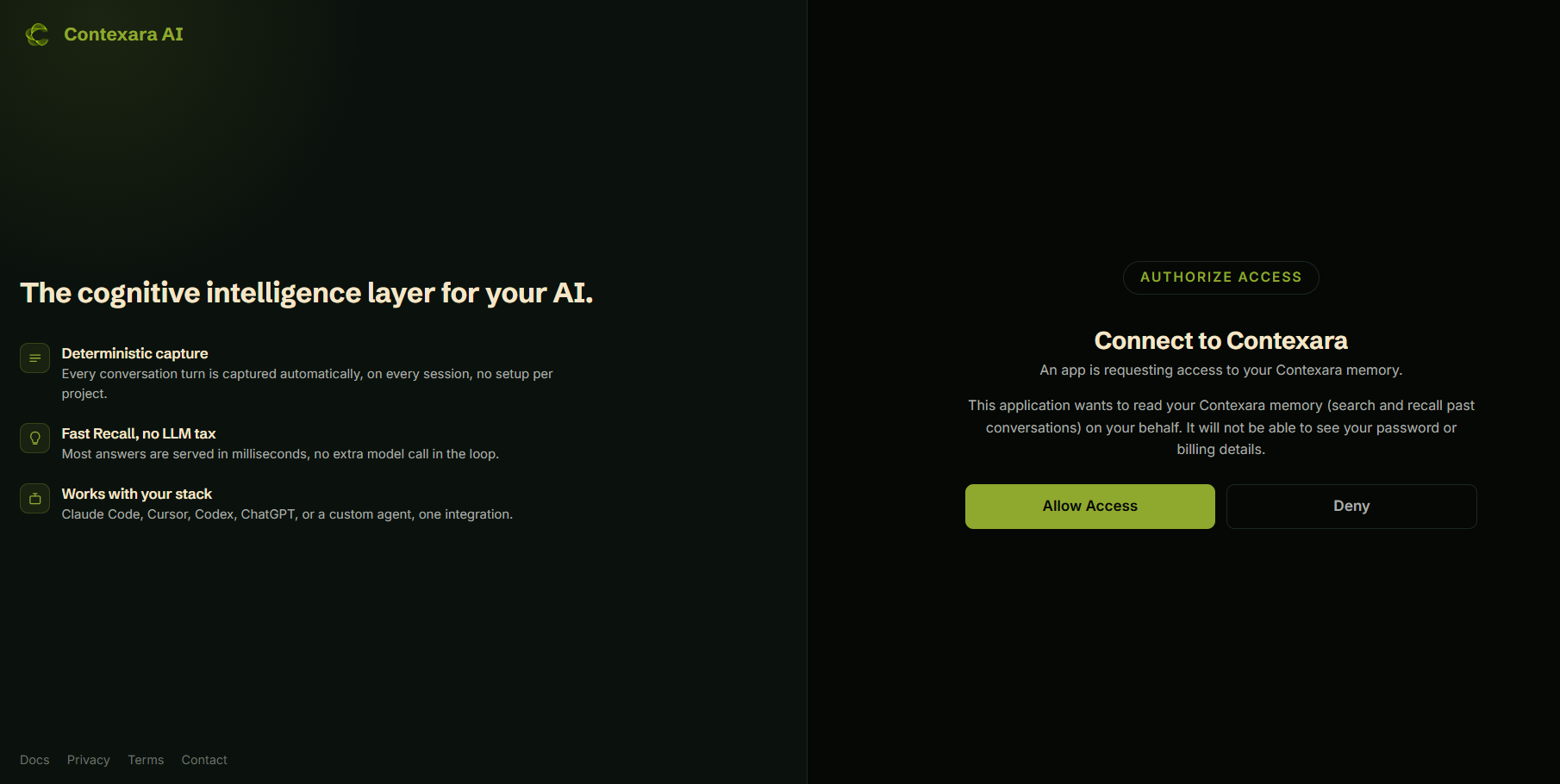
Claude redirects to Contexara, sign in and click Allow
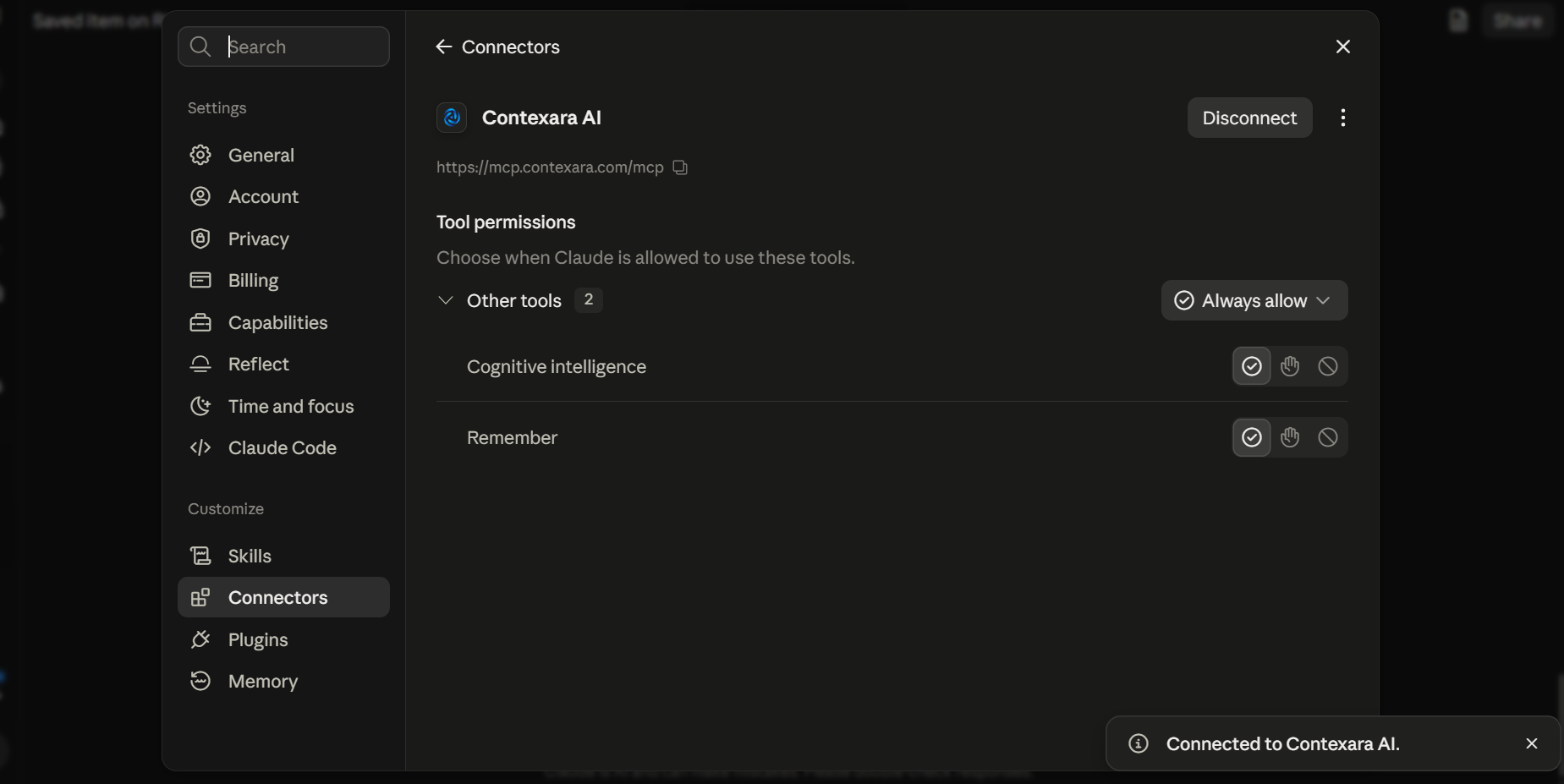
Contexara now shows as connected
4. Add the skill file
This teaches Claude what Contexara is and when to use it, so it recalls before answering and saves without being asked. Optional, but it makes a real difference.
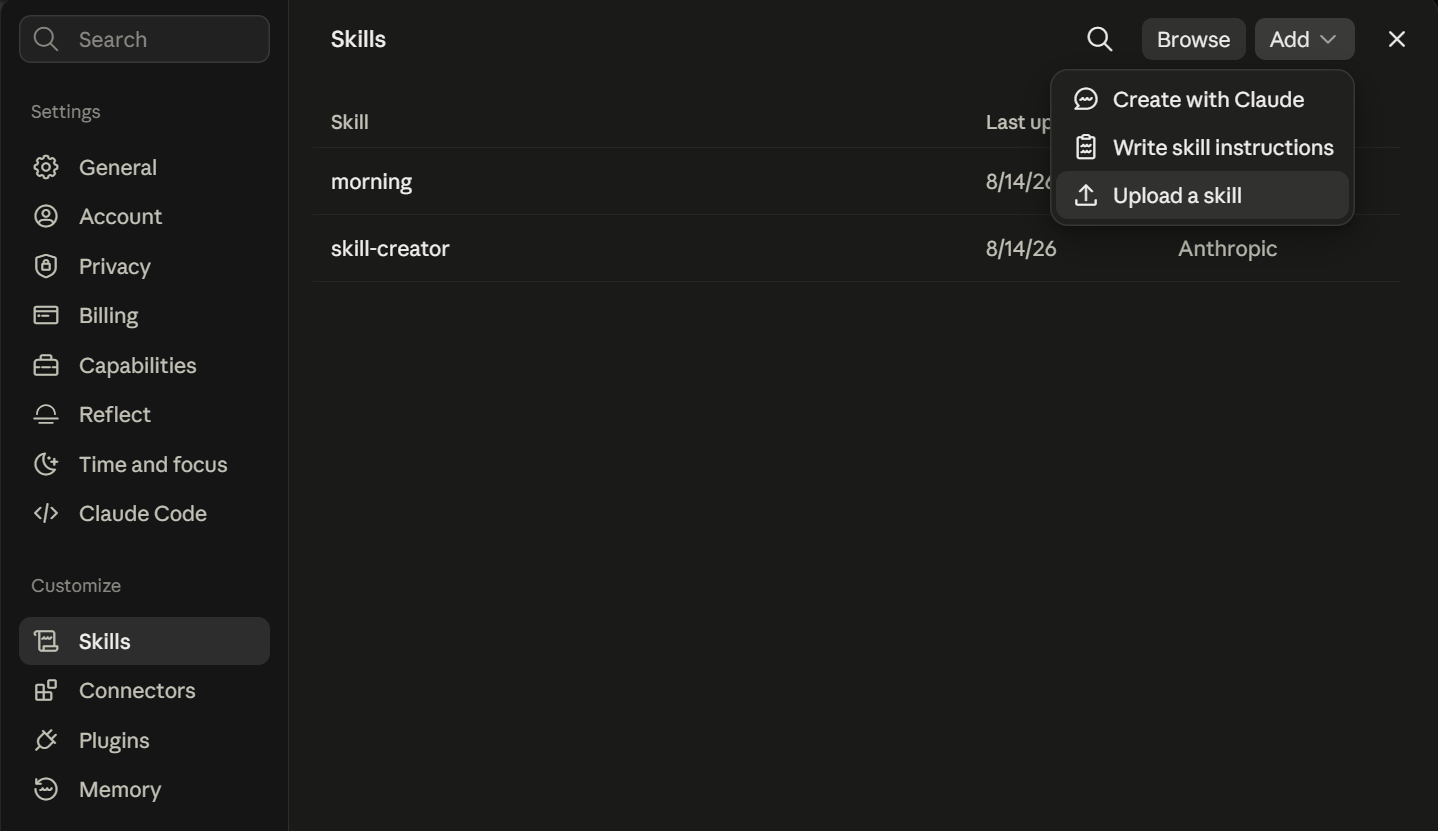
Download contexara-skill.md, then in Claude go to Settings → Skills and choose Add → Upload a skill.
5. Refresh the tool list
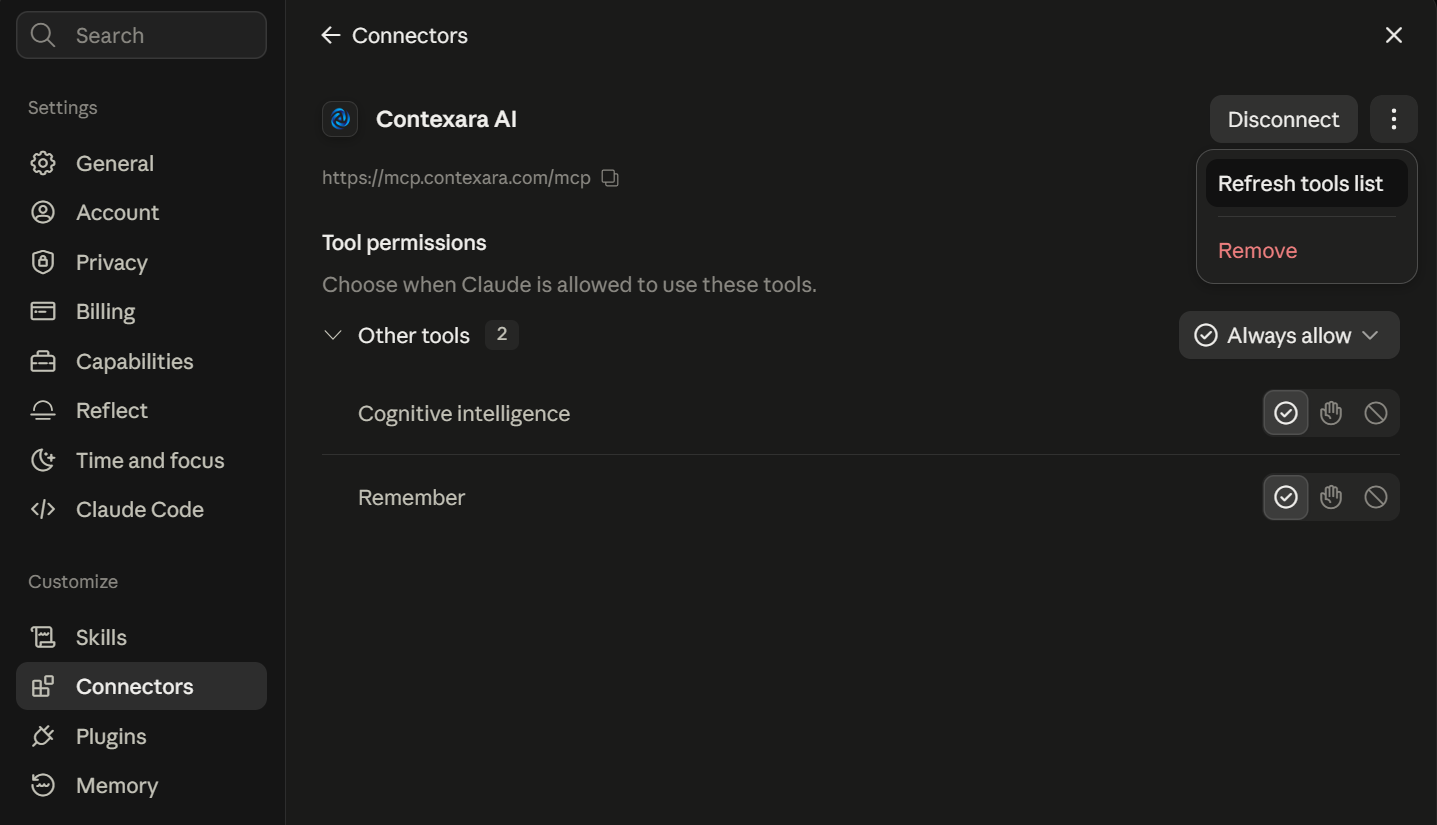
Open the Contexara connector, click the ⋮ menu and choose Refresh tools list. You should see two: Cognitive intelligence for recall and Remember for saving.
Set them to Always allow so Claude can use them without stopping to ask each time.
6. Just talk
That's the setup done. From here you use Claude normally, and Contexara works in the background.
Mention a decision, a preference, or what you're working on, and Claude saves it on its own. No command, no special phrasing.
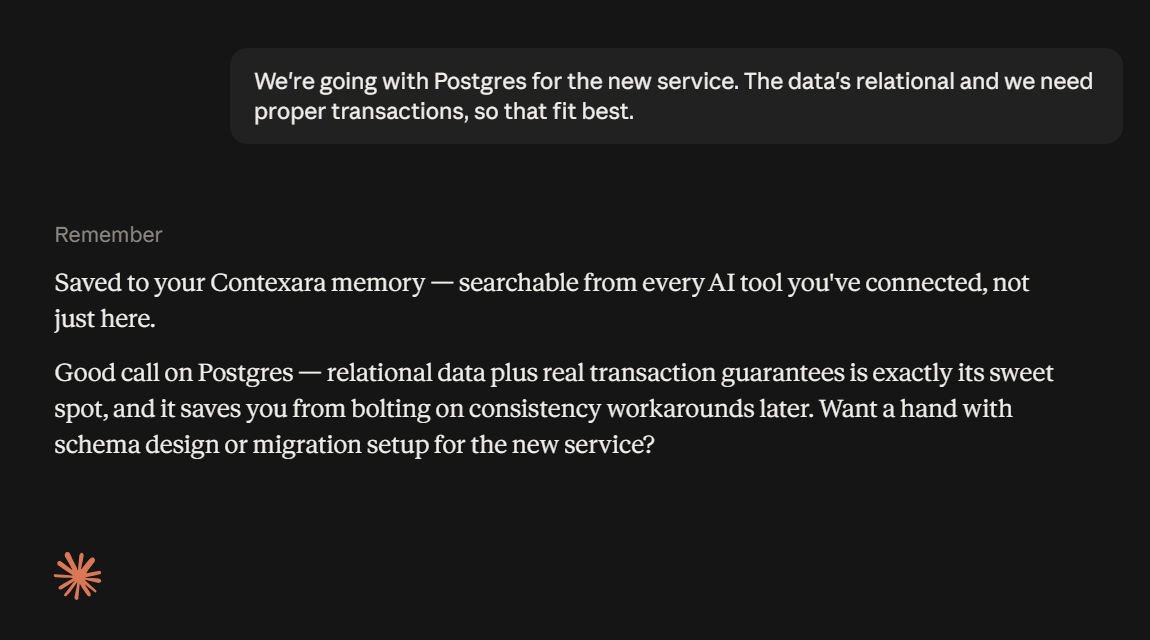
7. Prove it works
Start a brand new conversation, one with no history at all, and ask about it the way you naturally would.
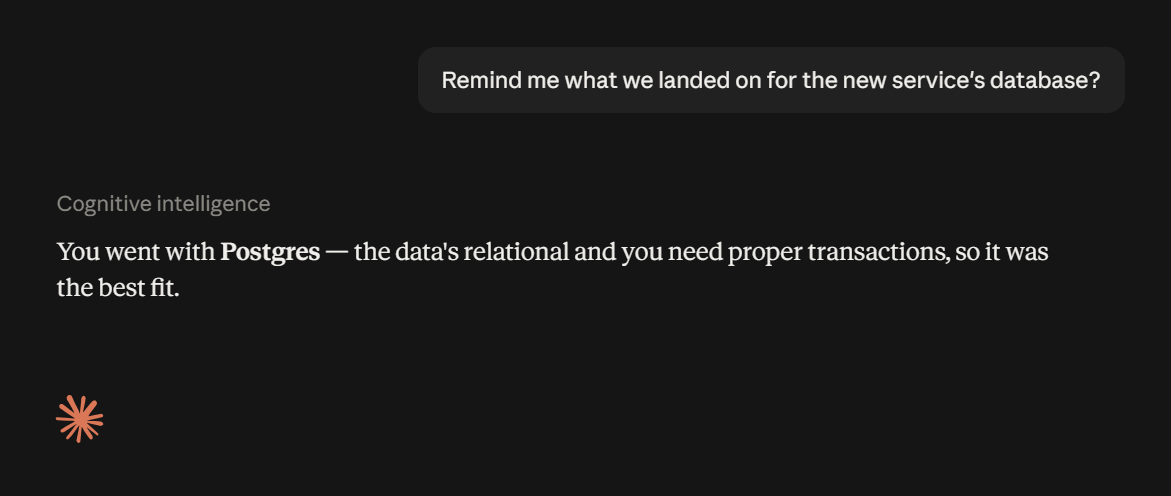
That round trip is the whole product: said once, available everywhere, in every tool you connect.
What happens next
Every memory is searchable from any tool you connect Contexara to. Save something in the browser, and Claude Code knows it. Decide something in Claude Code, and it's here.
Your dashboard shows what's been stored and how often it's been used.